
Dashboard at a glance
The dashboard is designed to help you manage online video processing without searching through separate pages. After signing in, you can see your account information, start a new upload, open the free QR code tool, and track every video order by status.
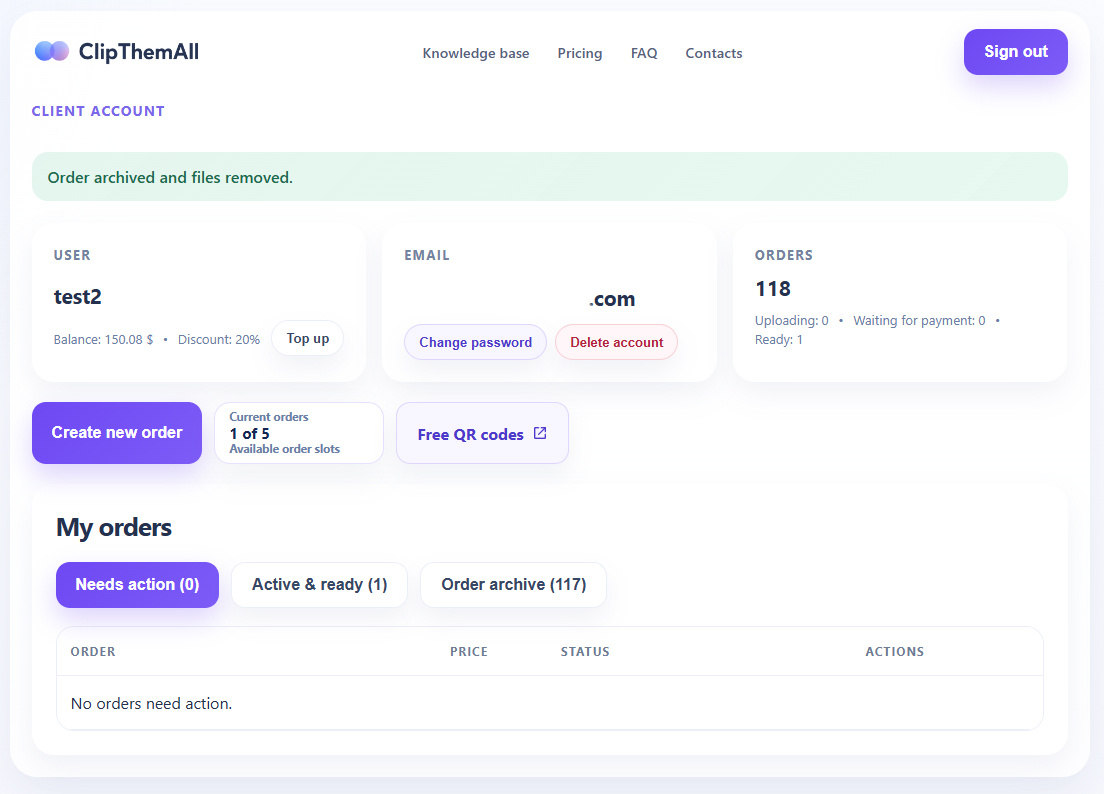
The screenshot below shows the main areas of the ClipThemAll user dashboard: account cards at the top, order creation controls in the middle, and the order tables below.
Account summary cards
The top part of the dashboard shows the most important account information before you create or manage a video order.
- User shows your account name, balance and active discount.
- Email shows the email address connected to your account and account security actions such as password change or account deletion.
- Orders shows the total number of orders and quick counters for uploading, waiting for payment and ready orders.
This makes the account dashboard useful for checking payment balance, discount status and order activity before uploading a new video for AI clip creation, vertical video conversion or video cutting.
Create order and available order slots
The Create new order button opens the order form. From there, you can upload a video, select the processing mode, review the estimated price and submit the order.
The dashboard also shows the current order slot counter. It tells you how many non-archived orders are currently active for your account. If all available order slots are already used, archive a ready order or wait until an existing order moves out of the active list before creating another one.
The Free QR codes button opens the QR code tool from the same account area, so you can access account utilities without leaving the dashboard.
Order tabs and statuses
Your orders are grouped into tabs so that paid, unpaid, uploading, ready and archived orders do not get mixed together.
- Needs action shows orders that need your attention, such as orders waiting for payment, uploads in progress or orders that failed before completion.
- Active & ready shows orders that are paid, waiting for processing, processing, or ready for download.
- Order archive shows completed archived orders after files are removed or after the order is manually archived.
This order management structure helps you quickly find video uploads, payment actions, completed clips and archived video processing results.
Download files and archive completed orders
When a video processing order is ready, the dashboard shows a download action in the order row. Use it to open the result files for that order and download the processed clips, timeline files or result archive if available.
Ready orders may also show an archive action. Archiving removes the source video and result files and moves the order into the archive, similar to the automatic cleanup process. This keeps your account organized and frees order slots for new work.
Why the dashboard matters for video processing
The ClipThemAll dashboard is the control center for the full workflow: upload a source video, choose AI video clipping or simple video cutting, pay online or from balance, track processing status, download finished clips and keep the order archive clean.
For creators, marketers, educators and businesses, the dashboard makes it easier to manage long video to short clip workflows, TikTok clips, Instagram Reels, YouTube Shorts exports and custom timestamp cuts from one account page.
Ready to manage your orders?
Open your ClipThemAll dashboard to create a new order, check your active video processing orders and download finished files.